| Device Type | Modbus TCP (Ethernet) | RS485 |
|---|
| DSY | ✅ | ❌ |
| DTY |
| DQY |
| DLY |
| DMY |
| DWY |
| DDY |
| DOY |
| DZY |
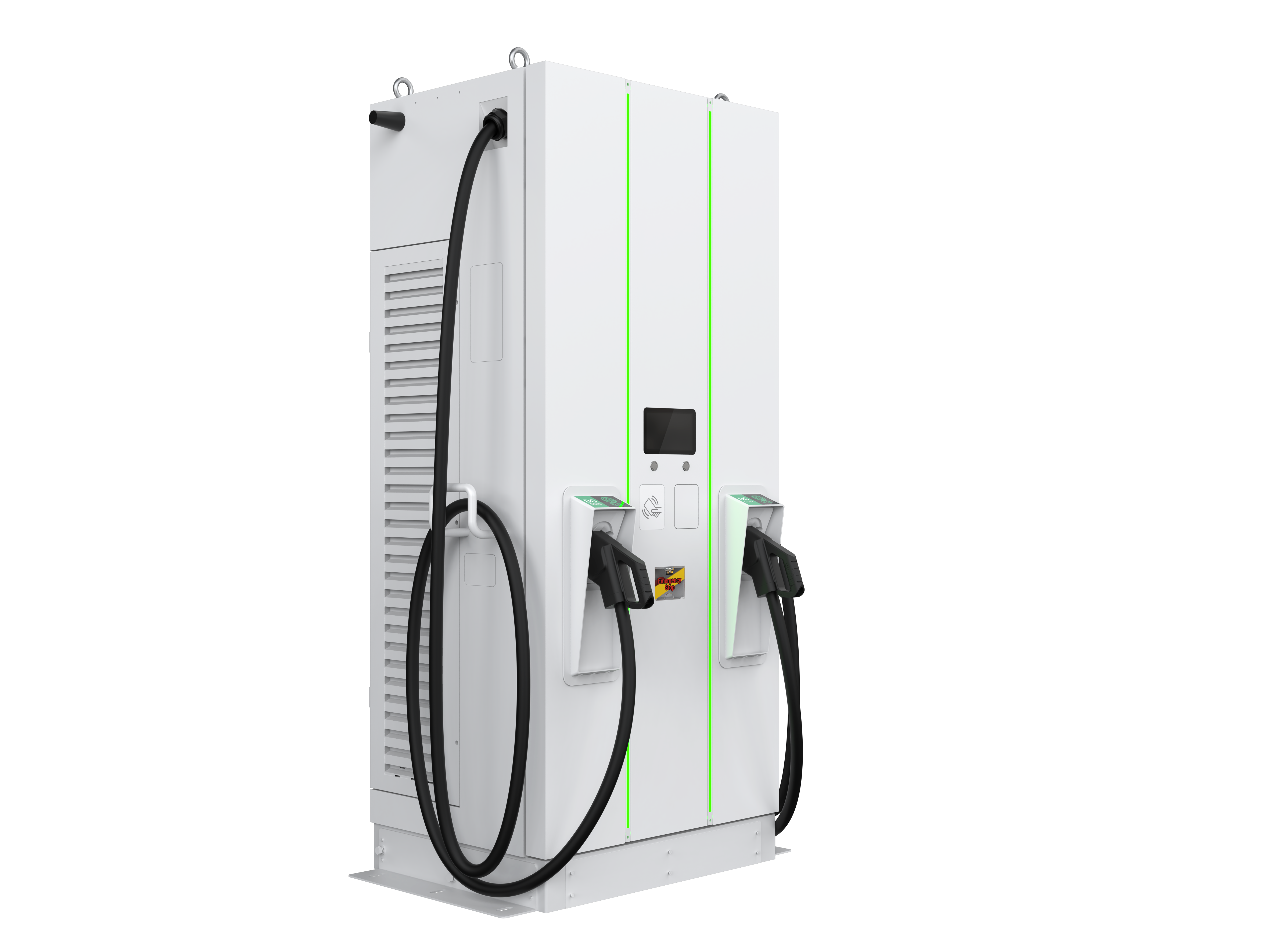
The communication between the EPSherpa EMS and the Zerova charging station takes place via Modbus TCP.
- Connect the charging station to the same local network (LAN) as the EMS using an Ethernet cable.
- For correct ethernet wiring standards, follow the guidelines for ethernet wiring.
To allow the EPSherpa EMS to control the station, you must enable Modbus TCP via the Zerova web portal.
- Log in to the Zerova web portal of the charger.
- Go to SET > Backend.
- Open the Modbus TCP Server section.
- Set Mode to Enable.
- Leave Password Verify and TLS encryption unchecked.
- Save the settings.
- Go to SET > System.
- Under System Information, you will find the Model Name and Serial Number of the charger.
- Go to SET > Network.
- Open the Ethernet section to find the MAC Address and IP Address of the charger.
TipTip
Assign a static IP address to the charger (or a DHCP reservation for its MAC address in your router). This makes sure the EMS can always find it.
- Go to the EPSherpa EMS web interface.
- Navigate to Devices > Add Device.
- Select Zerova > Modbus TCP.
- Enter the IP Address of the charger.
- Enter Port 502 and Modbus address 1.
- Click *
Scan*.
Last updated October 7, 2026