
Factory Reset
Warning
If you reset the EPSherpa EMS, the network configuration will be reset to DHCP. Take care if you perform a factory reset remotely, because the EPSherpa EMS might lose network access if it needs a specific network configuration!
Warning
Before you perform a factory reset, it is recommended that you make a backup of the settings.
Through the commissioning interface
Tip
Lost access to commissioning interface You can retrieve the IP address through mDNS. See also Option 3.2 of Accessing the commissioning interface.
You can reset the EPSherpa EMS through the commissioning interface, from the settings tab. Scroll down to "Factory reset", and click "Factory reset".

Without the commissioning interface
EPSherpa Pro (Model OM1)
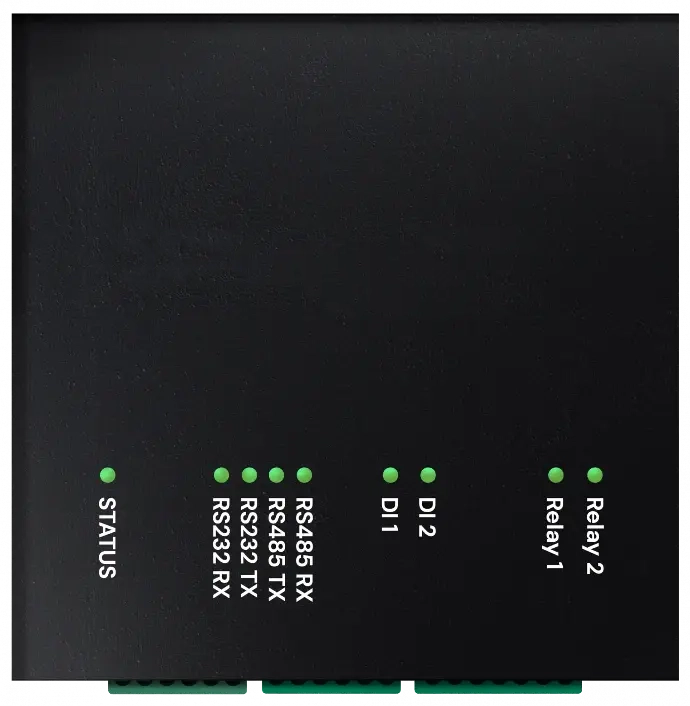
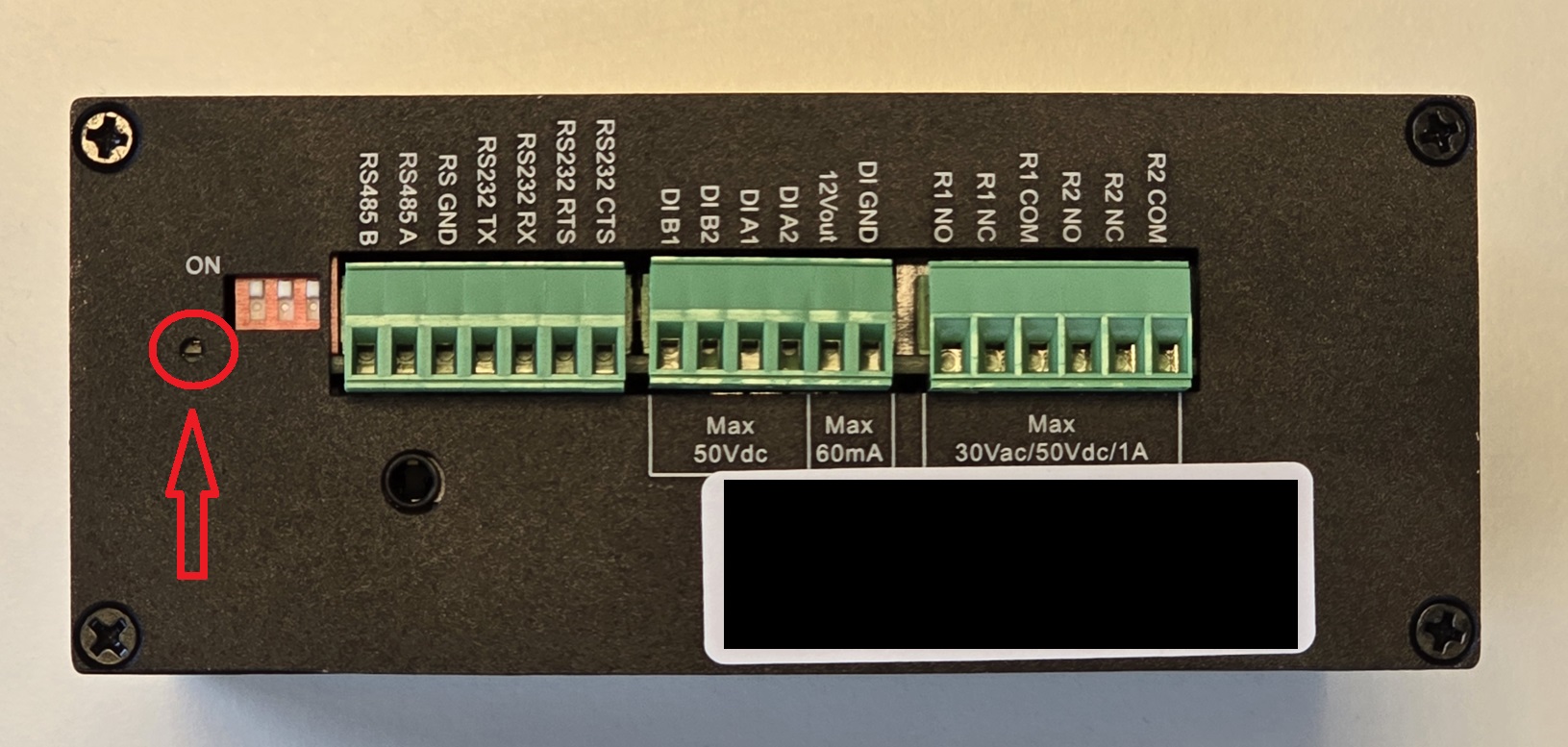
Switch the EPSherpa EMS and wait until it has booted (LED is cyan or blue during startup). This can take several minutes without internet. When the EPSherpa EMS is on, you can reset the EPSherpa EMS by pressing the physical reset button in the pin hole next to the RS485 interface for 10 seconds. The status LED will flash red-green. Release the reset button when the status LED becomes blue. The EPSherpa EMS is now rebooting.
Tip
Make sure you feel the reset button clicking when pressing it.
EPSherpa Home (Model EDS)
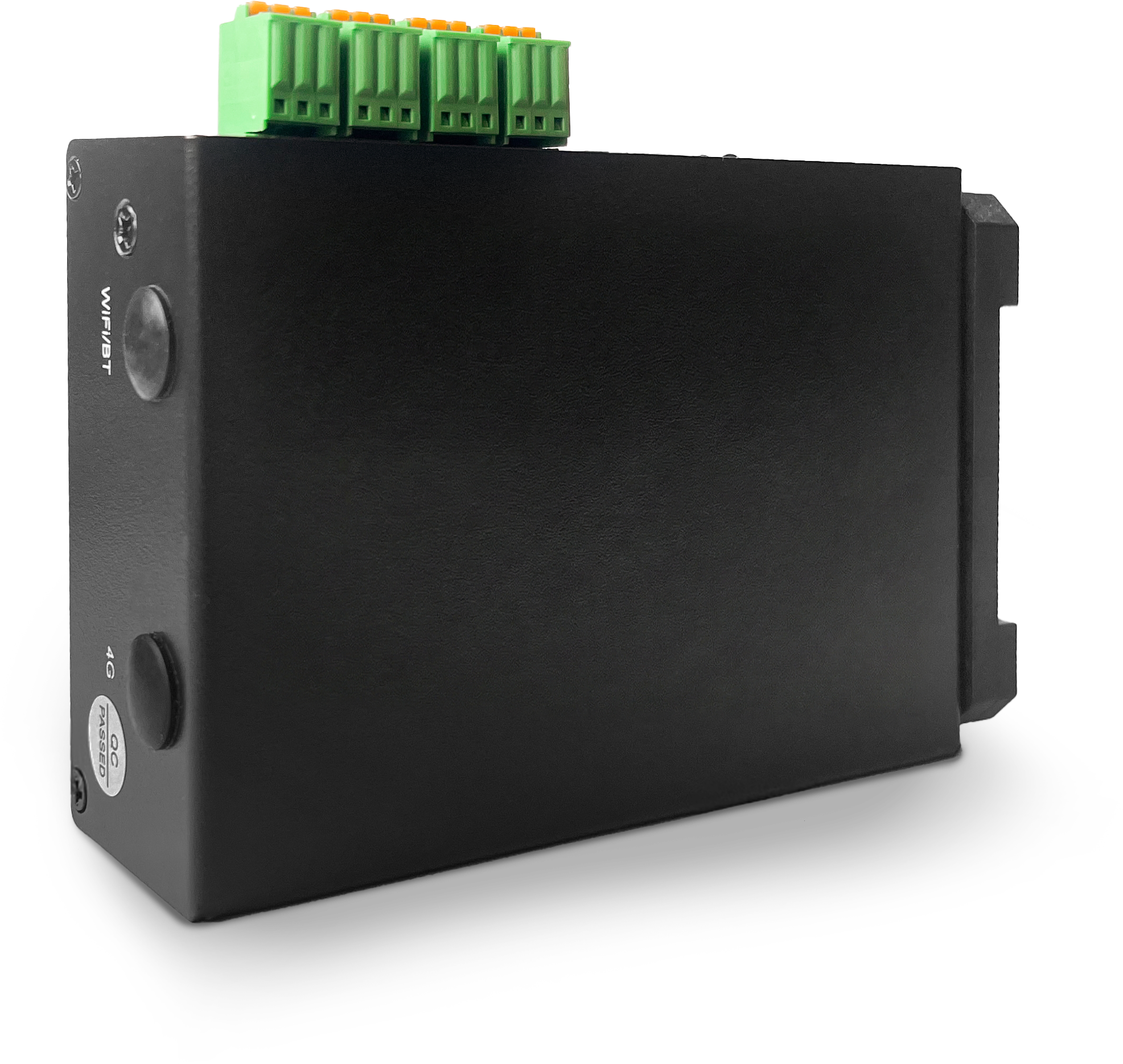
This model does not have physical reset button. You must reset the EPSherpa Home through the commissioning interface.
EPSherpa Lite (Model M1S)
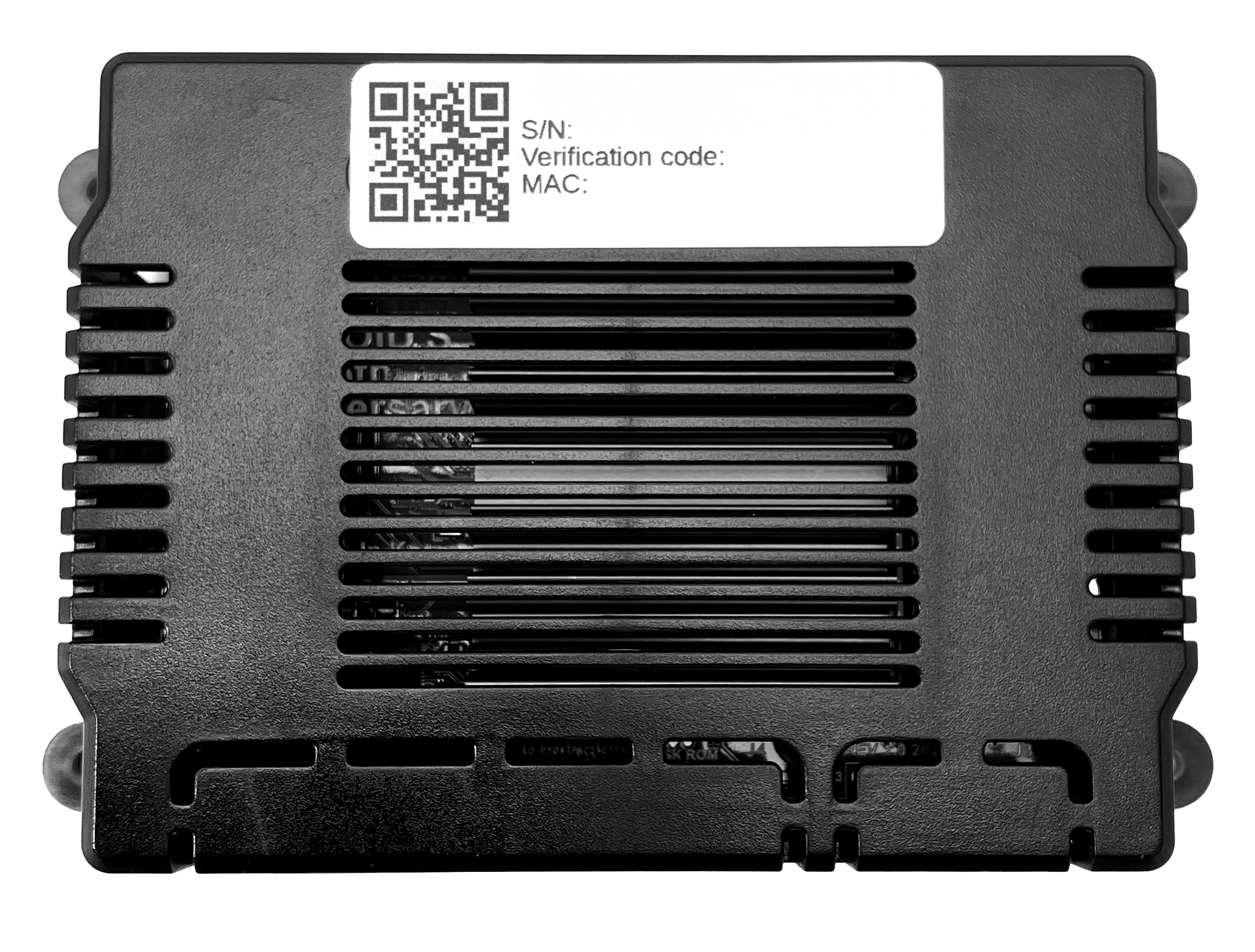
This model does not have physical reset button. You must reset the EPSherpa Lite through the commissioning interface.